AI Integration
GitResume speaks MCP, the open standard for connecting AI assistants to outside services. Once connected, your assistant can read your resume, check how your last push built, hand you a download link, and publish, all without you switching back to the dashboard.
It works with Claude and any MCP-compatible client, on the free plan too.
Connect
The server URL is:
https://gitresume.co/mcpGitResume is also listed in the official MCP registry as co.gitresume/gitresume.
Claude (web and desktop)
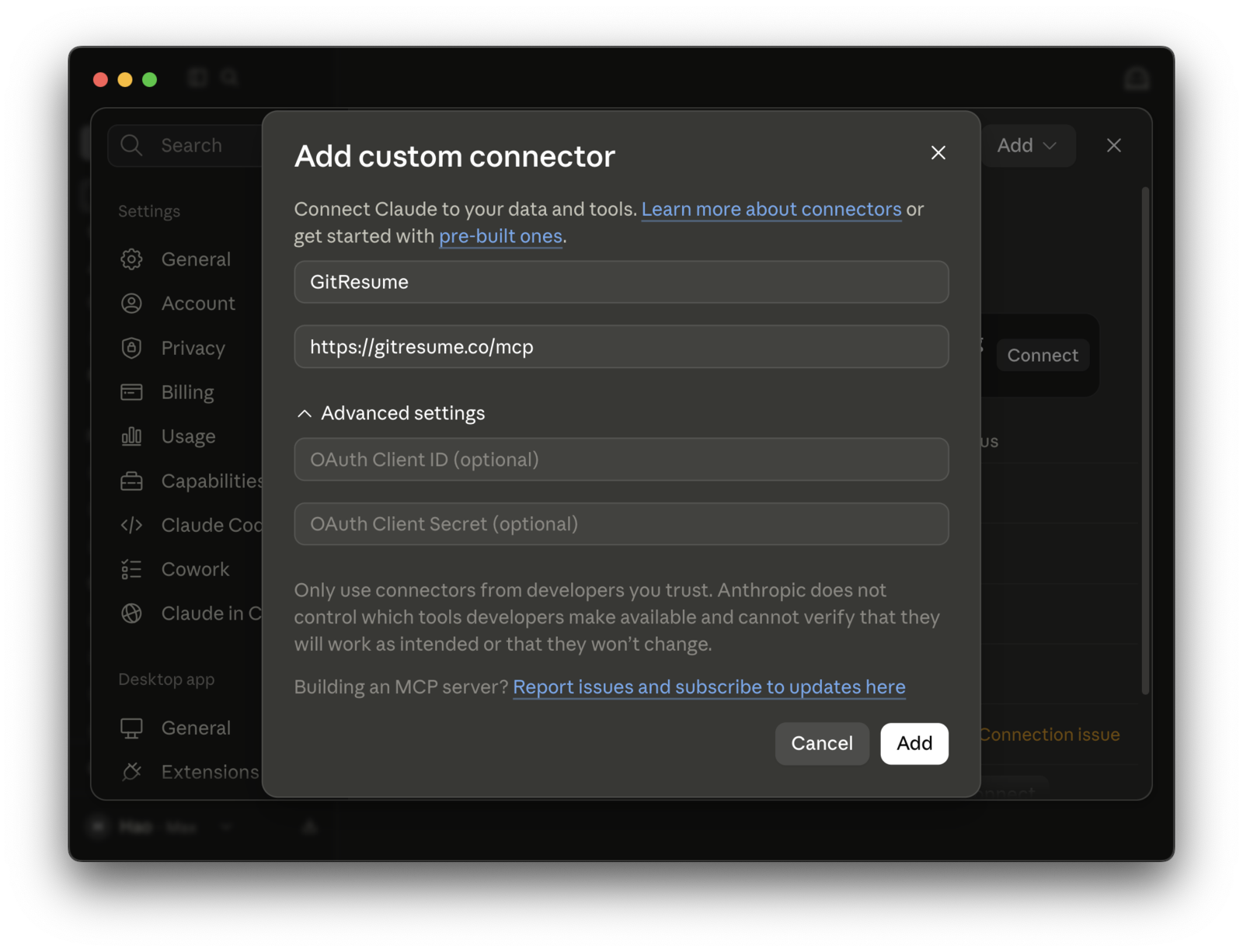
Open Settings → Connectors → Add custom connector. Only the first two of the four fields need anything:
| Field | What to enter |
|---|---|
| Name | GitResume |
| Remote MCP server URL | https://gitresume.co/mcp |
| OAuth Client ID | leave empty |
| OAuth Client Secret | leave empty |
The two OAuth fields under "Advanced settings" are for servers that cannot register themselves; GitResume registers automatically on first connect, so there is no key to request beforehand. Hit "Add", and GitResume asks which permissions to grant; approve and you are done.
Claude Code
claude mcp add --transport http gitresume https://gitresume.co/mcpYour browser opens to authorize on the first tool call.
Permissions
You decide what to grant on the authorization screen, and read access alone is a valid choice:
| Permission | What it covers | Notes |
|---|---|---|
| Read | Your projects, resume content, build history, PDFs, and analytics | Always required |
| Build | Trigger a rebuild | Optional |
| Publish | Publish or unpublish a resume | Optional |
An assistant only sees what you granted. Withhold Publish and the publishing tools do not exist for that connection at all. Review and revoke your connections anytime under Profile → Connected Agents; a revoked connection stops working within 15 minutes.
This integration never gives GitResume write access to your repository. After an assistant helps you revise your resume, you commit it yourself: with Git, or by opening the edit link it gives you and pasting the updated YAML.
What you can ask for
No tool names to memorize. Just say what you want:
- "Did my last push build?" Reads the latest build, and if it failed, brings back the error so you can fix it.
- "Check this resume against the schema before I push." Validates the YAML, so a typo costs seconds instead of a failed build.
- "Turn my old PDF resume into gitresume.yaml." Converts it, validates it, and walks you through committing it.
- "Give me the PDF link." Returns a download link to open in your browser.
- "How many people viewed my resume this month?" Reads the same analytics the dashboard shows.
- "Publish it." Flips the resume live and returns the public URL.
Importing an existing resume
If your resume is a PDF or Word file, this is the fastest way onto GitResume: connect the server, then ask your assistant to import it. GitResume ships an import-resume prompt for exactly this. Claude reads the schema, converts your resume, fixes whatever the validator objects to, then hands you the finished YAML to copy along with a link to the right spot on GitHub. You paste and commit. If your account has no project yet, the assistant first hands you a guided setup link; finish it in the browser and pick the conversation back up.
Assistants are explicitly told not to invent history: everything in the output comes from the resume you supplied. Read it before you commit, the same as anything else headed into your repository.
Privacy
Authorizing an assistant lets it read the data you granted, acting as you, until the authorization is revoked. How that assistant's provider handles the data is governed by their privacy policy, not ours. To end it, revoke the connection under Profile → Connected Agents. Full terms are in the AI Assistant Authorization section of the Privacy Policy.